

| Office 365 backup is a separate service that keeps independent, recoverable copies of your Microsoft 365 email, files, and data, because Microsoft protects its platform but does not guarantee recovery of your content if it is deleted, corrupted, or encrypted. |
A staff member empties a full mailbox to free up space. Three months later you need an attachment that went with it, and it is nowhere to be found. The business assumed Microsoft 365 had a copy, with no office 365 backup in place. It did not.
This is the single most common, and most expensive, misunderstanding we see. The logic feels sound: the data is in the cloud, Microsoft is a giant, surely they are backing it up. In practice, a dedicated office 365 backup is the only thing that would have brought that attachment back.
Microsoft keeps the platform running. It does not keep a recoverable copy of your individual emails, files, and SharePoint sites if a staff member deletes them, a mailbox is compromised, or ransomware encrypts your content. That is your responsibility, and most businesses only discover the gap after something is already gone.
This guide explains exactly what Microsoft does and does not protect, why a dedicated office 365 backup matters for New Zealand businesses, and what proper protection looks like. If you want the wider principles behind protecting business data, our data backup strategy guide sets out the foundations.
Does Microsoft 365 back up your data automatically?
No, not in the way most people assume. Microsoft 365 is built for uptime and infrastructure resilience, not for recovering your individual content after deletion, corruption, or a cyber attack. Microsoft replicates data to keep the service available, but that is not the same as a backup you can restore from weeks or months later.
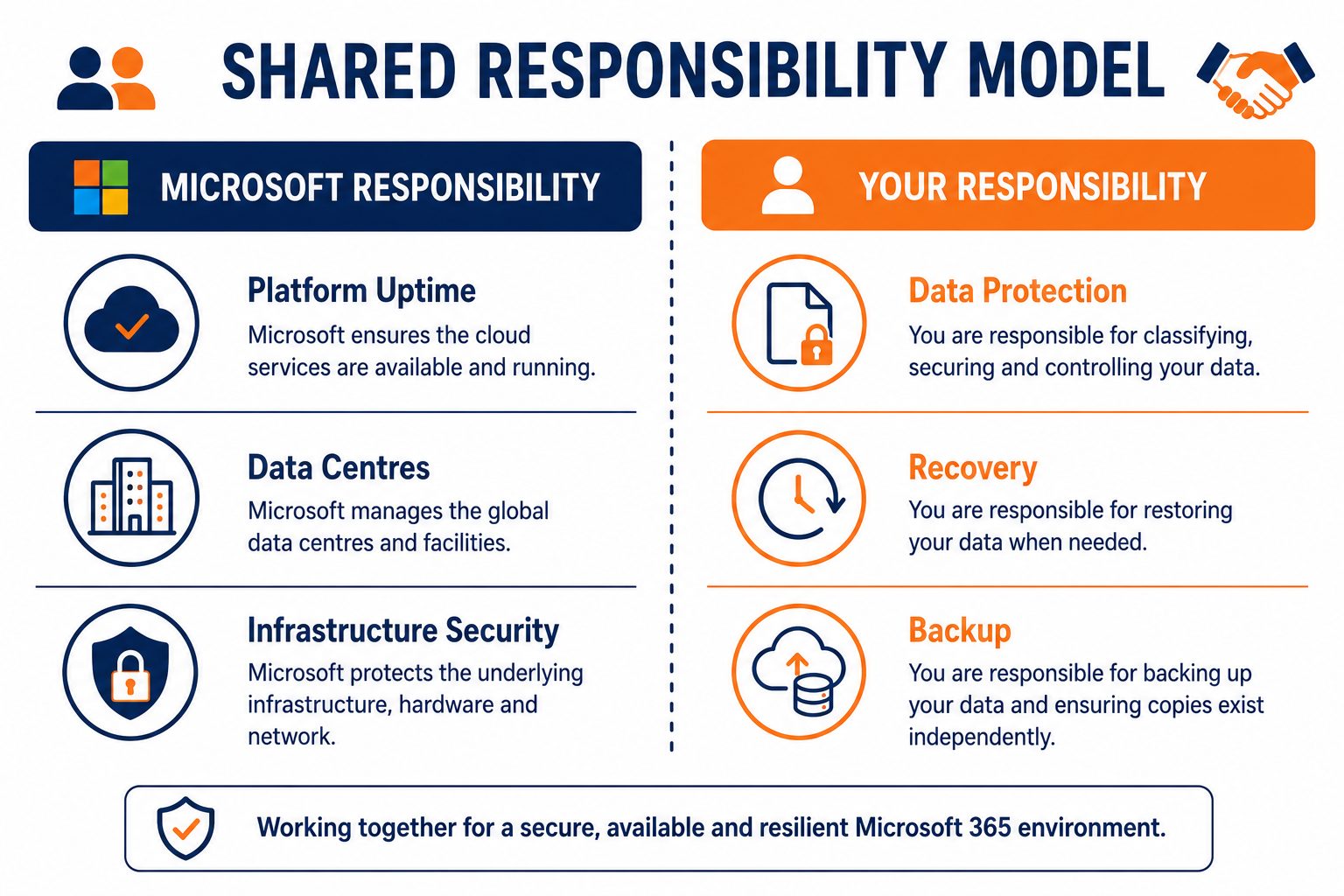
This is set out in Microsoft’s own Shared Responsibility Model. Microsoft secures the data centres, the platform, and service availability. You remain responsible for protecting and recovering your own data. The retention and recycle-bin features inside Microsoft 365 are short-term safety nets, not a substitute for a real office 365 backup.
What is the Shared Responsibility Model?
The Shared Responsibility Model is Microsoft’s published division of duties between itself and the customer. Microsoft is responsible for the security and uptime of the cloud platform. The customer is responsible for the security and recoverability of the data they put into it. In plain terms: Microsoft keeps the lights on, but your data is yours to protect.
Is cloud storage the same as cloud backup?
They are not the same thing, and the gap between them catches people out. Cloud storage holds your live data and syncs changes across devices, which means a deletion or an encryption event syncs too. Cloud backup keeps separate, point-in-time copies you can roll back to. Storing files in OneDrive or SharePoint is storage, not backup, and the difference only becomes obvious the day you need to recover something that synced away.
What does Microsoft 365 not protect against?
Microsoft 365 does not reliably protect you from the things that cause most data loss: human error, malicious deletion, account compromise, and ransomware. These are the everyday events that wipe out business data, and native retention rarely holds long enough to save you.
These losses tend to follow the same course. The problem is noticed weeks or months later, well past the point where the recycle bin or default retention can help. By then the only thing that saves the business is an independent office 365 backup that kept a copy outside Microsoft’s short retention window.
It helps to be concrete about how this plays out. A staff member empties their deleted items to tidy a full mailbox, and a contract attachment goes with it. A finance manager leaves, and three months on you need an email that was in their archive. A shared SharePoint library is overwritten by a synced folder, and the previous version is gone. In every case the data recovery depends entirely on whether a Microsoft 365 backup was running, because native retention has long since expired.
How long does Microsoft retain deleted data?
By default, only a short window, typically measured in weeks rather than months, and it varies by item type and licence. Deleted mailboxes, files, and SharePoint content move through recycle bins and retention periods that expire, after which the data is gone for good. A business that needs to recover something from last quarter, not last week, will usually find native retention has already lapsed.
What about accidental and malicious deletion?
Both are common and both are your problem to recover from, not Microsoft’s. A staff member clearing out a mailbox, a departing employee deleting files, or an attacker who gains access and wipes data can all cause permanent loss once retention expires. An office 365 backup keeps an independent copy so these events become an inconvenience instead of a disaster.
Does Microsoft 365 protect against ransomware?
Only partially. If ransomware encrypts files synced to OneDrive or SharePoint, that encryption can sync to the cloud copy too. A proper office 365 backup keeps isolated copies an attacker cannot reach, so you can restore clean data instead of paying. This sits alongside wider defences covered in our ransomware myths article.
Why does office 365 backup matter for NZ businesses?
Because what lives in Microsoft 365 is often the most valuable thing your business owns: years of email, signed contracts, client records, and the shared files your team works from daily. Losing it carries both an operational and a compliance cost. For New Zealand businesses there is a Privacy Act dimension as well, because you are accountable for protecting and being able to produce the personal information you hold.
Losing customer or staff data is not just disruptive, it can be a breach. A dependable office 365 backup supports your obligations under the NZ Privacy Act by ensuring personal information you are responsible for is recoverable, not lost to a deletion or an attack.
There is a continuity cost too. When a mailbox or a shared site vanishes, work stops while people hunt for the latest copy and try to piece it back together. An office 365 backup turns that scramble into a quick restore, so a deletion or compromise costs minutes instead of days. For a small team without spare capacity, that can decide whether an incident is minor or shuts you down for a week.
How does it fit with disaster recovery?
An office 365 backup is one layer of a wider recovery picture. It protects your cloud data specifically, while a disaster recovery plan sets out how the whole business gets back online after a major incident. The two work together: the backup provides the recoverable data, and the plan provides the process for using it.

What does a proper office 365 backup include?
A proper office 365 backup keeps automated, independent, point-in-time copies of all your Microsoft 365 data, retained for as long as your business needs and recoverable down to a single item. It should cover Exchange email, OneDrive, SharePoint, and Teams, not just one of them, and store copies isolated from your live tenant.
The practical test is simple. Can you recover a single email a staff member deleted three months ago? Can you restore an entire mailbox after an account is compromised? Can you roll back files encrypted by ransomware to a clean version? If the answer to any of these is no, your current protection is not a backup.
Recovery granularity matters as much as coverage. A good office 365 backup lets you restore a single item, a whole mailbox, or an entire site, without forcing an all-or-nothing recovery. Equally important is retention: copies should be kept for as long as your business and any compliance obligations require, not just a few weeks, so that office 365 backup data recovery is still possible when a loss is discovered late, which is the norm, not the exception.
What should it cover?
Full coverage means Exchange Online mailboxes, OneDrive files, SharePoint sites and document libraries, and Teams data, captured automatically every day. Partial coverage is a common trap: a business backs up email but not SharePoint, then loses a critical project site with no way back. If it is not explicitly covered, treat it as not covered.
How is it different from just keeping files in OneDrive?
OneDrive stores and syncs your current files; it does not keep protected historical versions safe from deletion or ransomware. An office 365 backup keeps separate copies that survive even if the original is deleted, overwritten, or encrypted. Relying on OneDrive alone leaves you exposed to exactly the events a backup exists to handle.
Which businesses need office 365 backup?
Any business that runs on Microsoft 365 and would struggle to operate after losing its email or files needs an office 365 backup, which today means almost every organisation using the platform. The more your day runs through Outlook, SharePoint, and Teams, the more exposed you are if that data cannot be recovered.
Two objections come up often. The first is that the business is too small to bother; in reality smaller teams are usually less able to absorb a permanent loss, and the cost of protection is modest next to the cost of recreating lost records. The second is that the business has never had a problem, which only means the gap has not been tested yet. Most data loss is sudden and unannounced, and the businesses that recover well are the ones that arranged protection before they needed it.
Does it cost much to protect Microsoft 365 data?
A managed office 365 backup is normally a small, predictable per-user monthly cost, scaled to the number of mailboxes and the data you hold. Measured against the cost of permanently losing client records, recreating lost work, or breaching the Privacy Act, it is one of the lower-cost protections a business can put in place. The value shows the first time a restore is needed and the data is simply there.
Are the built-in retention features enough?
Not as a substitute for a real backup. The retention, recycle bin, and legal hold features inside Microsoft 365 are useful short-term safety nets, but they were never designed to do a backup’s job. They have limited retention windows, can be turned off or misconfigured, and do not protect against an administrator or attacker who deletes data deliberately.
A genuine Microsoft 365 backup is independent of the tenant it protects, and that independence is what you are really paying for: if your live environment is compromised, misconfigured, or hit by ransomware, the backup sits outside it and stays recoverable. Native features live inside the same environment that is at risk, so they tend to fail in the very situations where you most need protection.
What is the difference between retention and backup?
Retention decides how long Microsoft holds deleted items before purging them, on a clock you have limited control over. A backup keeps your own independent copies for as long as you choose, with full data recovery on demand. Retention is a short grace period; a backup is a protected copy you control and keep for as long as you need.
How do you set up office 365 backup for your business?
You set it up through a managed backup service that connects securely to your Microsoft 365 tenant, captures all your data automatically, and stores recoverable copies independently. For most businesses this is far simpler and more reliable than trying to build and monitor it in-house.
Exodesk provides office 365 backup as part of our cloud solutions for businesses across Christchurch, Dunedin, and the wider South Island. We connect to your tenant, back up Exchange, OneDrive, SharePoint, and Teams every day, store isolated copies, and test that they restore, so the gap Microsoft leaves is fully closed.
How long does it take to set up?
For most small and mid-sized businesses, initial setup takes hours, not days, with the first full backup completing in the background over the following day or two depending on data volume. Once running, it is automatic, so there is no ongoing task for your team to remember. From that point your Microsoft 365 data is protected continuously, and recovering a lost item is a quick request rather than a frantic search through expired retention.
Close the gap Microsoft leaves open
If your business data lives in Microsoft 365, Exodesk makes sure it is genuinely recoverable with managed office 365 backup for Christchurch, Dunedin, and South Island businesses. We have been keeping South Island businesses running since 1989.
Contact us today to discuss how we can help your business or connect with us on LinkedIn to stay updated with more insights.
Frequently Asked Questions
Does Microsoft 365 back up my data?
Not in the way most people assume. Microsoft keeps its platform running and replicates information for availability, but it will not restore your individual emails and files once they are lost to an accident, malware, or a cyber attack. Under Microsoft’s Shared Responsibility Model, securing and recovering the data you put in is the customer’s job, which is why businesses run a separate office 365 backup alongside it.
What is the Shared Responsibility Model?
It is Microsoft’s published split of duties between itself and the customer. Microsoft secures the data centres, the platform, and service uptime, while the customer is responsible for the security and recoverability of the data they put in. In short, Microsoft keeps the service available, but your data is yours to protect and back up.
Is cloud storage the same as a backup?
No. Cloud storage such as OneDrive holds your live files and syncs every change, including deletions and ransomware encryption, across your devices. A backup keeps separate, point-in-time copies you can roll back to. Storing data in Microsoft 365 is not the same as having an office 365 backup you can recover from.
How long does Microsoft keep deleted data?
By default only a short window, usually weeks not months, and it varies by item type and licence. Once recycle bins and retention periods expire, the data is permanently gone. Businesses that need to recover something from last quarter, not last week, often find native retention has already lapsed.
What does an office 365 backup protect against?
It protects against the everyday events that cause most data loss: accidental deletion, malicious deletion by staff, account compromise, and ransomware. Because it keeps independent copies outside Microsoft’s short retention window, these events become recoverable instead of permanent. It covers Exchange email, OneDrive, SharePoint, and Teams.
Does Office 365 backup protect against ransomware?
Yes, when done properly. If ransomware encrypts files synced to OneDrive or SharePoint, that encryption can reach the cloud copy too. A real office 365 backup keeps isolated copies an attacker cannot alter, so you can restore clean data instead of paying a ransom.
Do small businesses really need office 365 backup?
Yes, and arguably more than larger ones. A smaller team is usually less able to absorb the loss of its records and less likely to have someone watching backups in-house. The cost of protection is modest next to the cost of permanently losing customer data or breaching the Privacy Act.
What data does it cover?
A complete office 365 backup covers Exchange Online mailboxes, OneDrive files, SharePoint sites and document libraries, and Teams data, captured automatically. Beware partial coverage that backs up email but not SharePoint, leaving critical project data exposed. If something is not explicitly covered, assume it is not protected.
Is it a Privacy Act compliance requirement?
The Privacy Act requires you to protect personal information and keep it accessible, and being unable to recover it after a deletion or attack can contribute to a breach. An office 365 backup helps meet these obligations by keeping the personal data you are responsible for recoverable. It is a practical part of compliance, not a tick-box exercise.
How do I set up office 365 backup?
You connect a managed backup service securely to your Microsoft 365 tenant, which then captures your data automatically and stores recoverable copies independently. Setup usually takes hours, and once running it is fully automatic. Exodesk sets this up for Christchurch, Dunedin, and South Island businesses as part of a managed cloud service.